Setting up 1Kosmos as an External Authentication Method (EAM) for Microsoft Entra ID
Overview
The integration between 1Kosmos and Microsoft Entra ID (formerly Azure Active Directory) enables users to leverage strong multifactor authentication methods, including passkeys, device biometrics, LiveID, QR code scanning, and more. For organizations already using Entra ID, 1Kosmos enhances security by protecting privileged access, high-risk user logins, and platforms not covered by Microsoft—delivering a consistent authentication experience across cloud, on-premises, and hybrid environments.
Integration Diagram
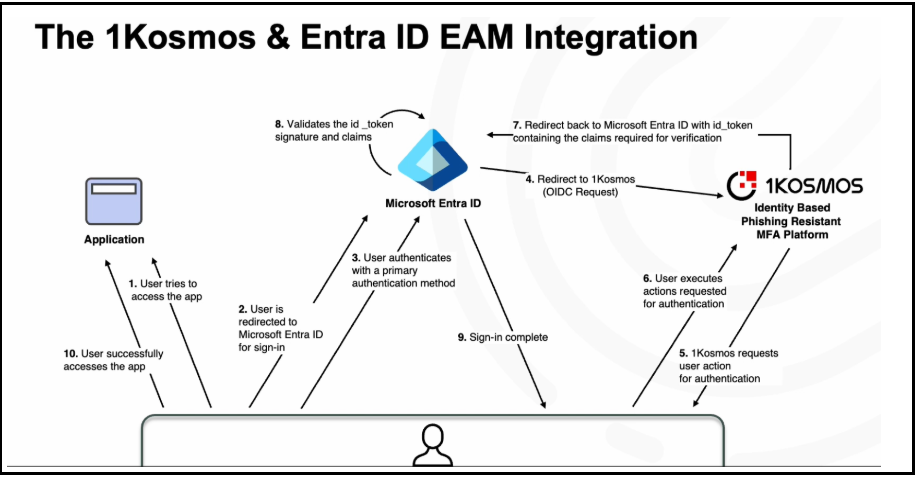
The integration diagram illustrates how 1Kosmos is configured as a standard OIDC request, showing its role as an external authentication method for Entra ID when accessing applications like Microsoft 365.
Creating the 1Kosmos External Authentication Method
-
Log into (https://portal.azure.com)
-
Navigate to Microsoft Entra ID and then go to Security > Authentication Methods > Policies.
-
Click + Add External Method.
-
On the Add External Method page, enter the following details:
-
Name - Enter a descriptive name. Use a unique name as users see this name during Entra ID authentication.
-
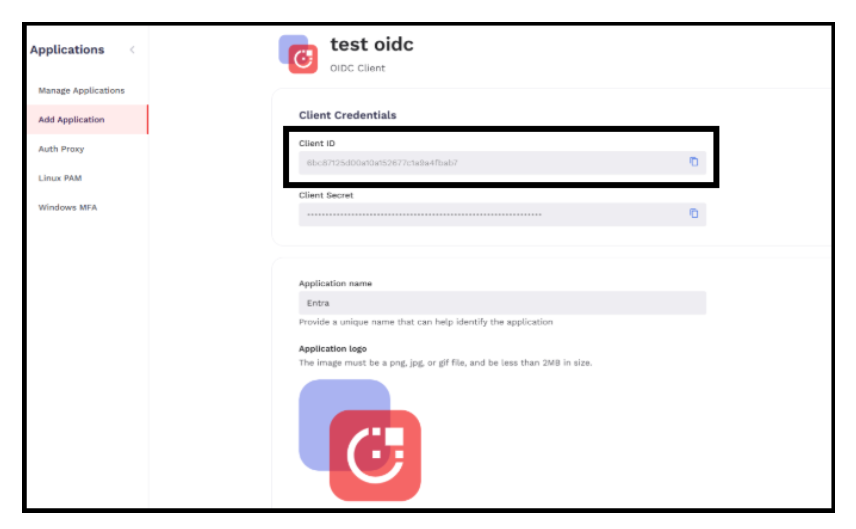
Client ID – Copy the Client ID value from the Client Credentials section under OIDC of the AdminX interface and paste it into the Client ID field.
-
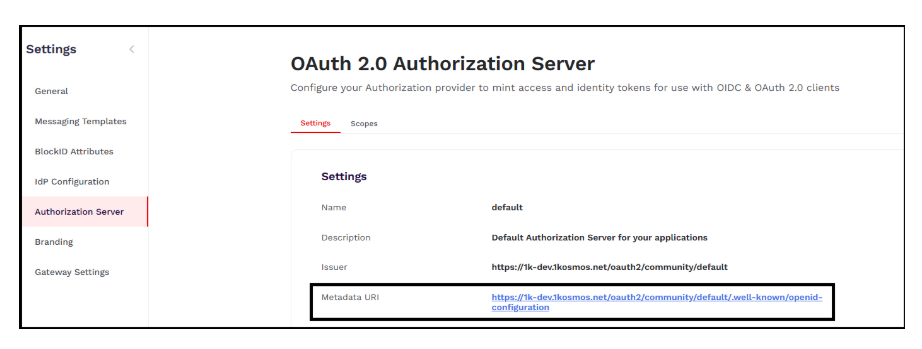
Discovery Endpoint - Copy the Metadata URL from the 1kosmos’ AdminX interface under the Settings > Authorization Server menu and paste it into the Discovery Endpoint field.
-
App ID – Copy the app id from the App Registrations under the Entra ID control pane and paste it into the Entra ID App ID field.
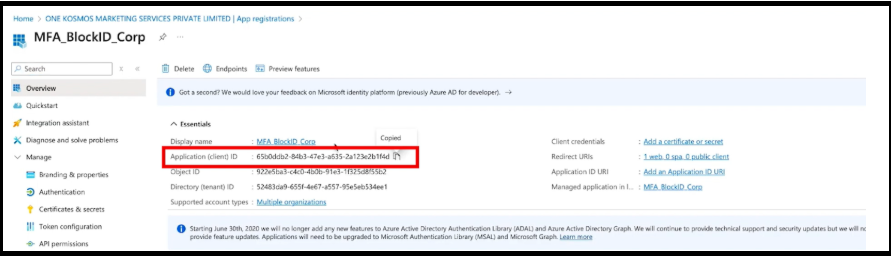
-
-
Make sure that the admin consent has been granted.
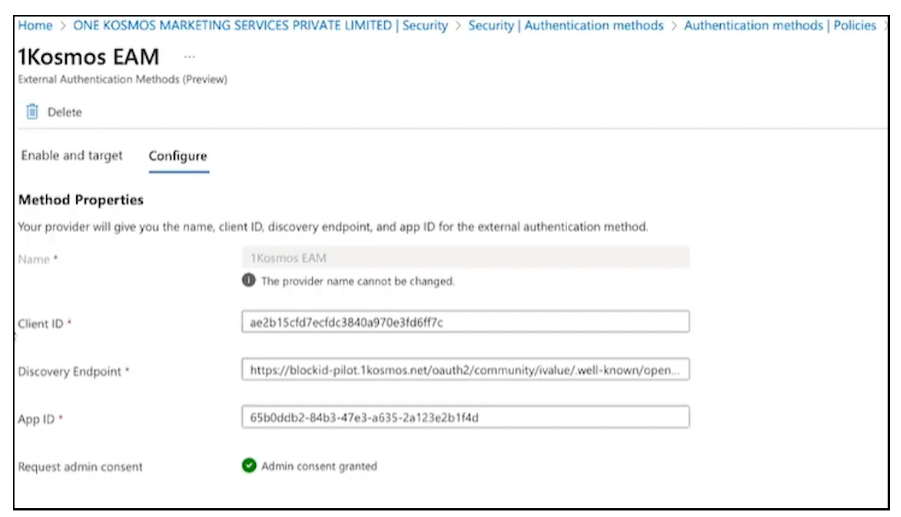
-
If you want to enable the new 1Kosmos EAM method immediately, toggle Enable from Off to On.
-
Before saving the new 1Kosmos external method, specify the users or group for whom you want to use this new method.
-
Click Save.
You have now configured 1Kosmos as an external authentication method.
Configuring MFA in 1Kosmos
To configure multi-factor authentication methos in 1Kosmos, follow these steps:
- Log in to the AdminX interface as a community administrator.
- Navigate to Authentication > Passwordless Login.
- Expand the Passwordless Login using BlockID App drop-down menu and in the Authentication Factors for Mobile App section, select the Primary Authentication Factor as Face ID/Touch ID.
- Click Save.
Signing In to an Application
-
Open the URL of an application that you want to sign in. For example, office 365.
-
Click Sign in.
-
Enter your email id and click Next.
-
Enter your password and click Sign in.
-
In the Verify your identity page, click Approve with 1Kosmos_MFA. You will be redirected to the 1Kosmos_MFA screen to verify your identity.
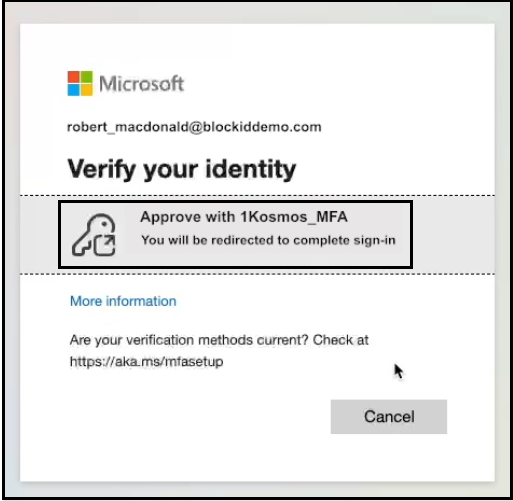
-
You will be redirected to the 1Kosmos’ Sign in page. Use the BlockID app to scan the QR code and then provide the device-based biometrics to approve the login request. You have now successfully logged in to the application.