Behavior Authentication
1Kosmos now supports two additional authentication factors — Behavior Authentication and User PIN — to enhance secure and seamless user login experiences.
Behavior Authentication in 1Kosmos is a form of behavioral biometrics that analyzes how individuals interact with digital systems — such as typing on a keyboard, moving a mouse, swiping a screen, or handling a device. These interactions are compared against the user’s established behavioral profile to verify their identity without requiring additional credentials. Additionally, user PIN enables users to set and authenticate using a Personal Identification Number of their choice.
Both authentication factors can be enrolled via the Windows Workstation MFA Agent and used as methods for logging in to Windows systems.
This approach is particularly useful in environments requiring PCIDSS-compliant passwords (14–16 characters), which can be complex and hard to remember. With the addition of Behavioral Authentication and User PIN, users can securely log in without relying solely on passwords. As a result, the need for frequent password changes is reduced, offering a more seamless and secure authentication experience.
Enabling Behavior Authentication
Community administrators can now use the AdminX interface to enable the behavior authentication. In the UI, administrators can decide whether to enable the user to enroll their typing pattern or enroll the PIN.
To enable the behavior authentication feature, follow these steps:
- Log in to your tenant as a community administrator.
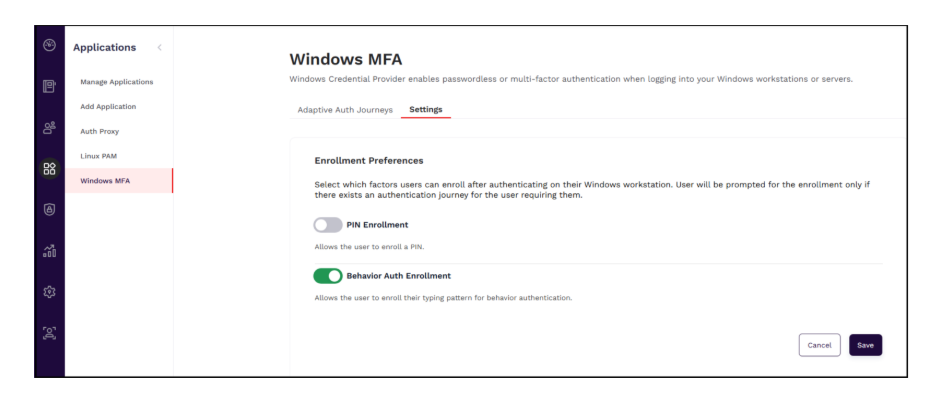
- Navigate to Applications > Windows MFA > Settings.
- In the Enrollment Preferences section, specify the factors that you want to enable. The following options are available for enablement:
- PIN Enrollment – Toggle the slider ON to enable this option.
- Behavior Auth Enrollment – Toggle the slider ON to enable the user to enroll their typing pattern.
- Click Save.
By default, these enablement options are disabled.
Configuring Adaptive Authentication Journey for Behavior Enrollment
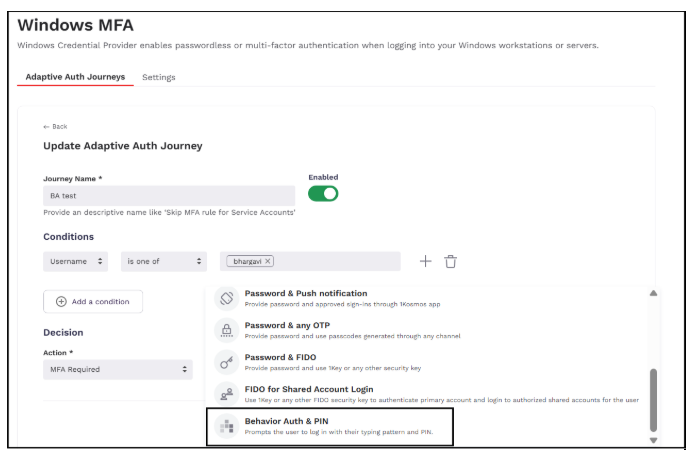
After enabling the appropriate settings under the Settings tab of the Windows MFA menu, community administrators can navigate to the Adaptive Auth Journeys tab to configure an authentication journey. To configure, follow these steps:
-
Log in to your tenant as a community administrator.
-
Navigate to Applications > Windows MFA > Adaptive Auth Journeys.
-
Click Add new adaptive auth journey.
-
Specify a journey name and add a condition to whom this journey is applicable.
-
In the Decision section, select the Action as MFA Required and in the Authentication Method drop down menu, select Behavior Auth & PIN.
-
Click Save.
Enrolling Typing Pattern
In 1Kosmos, community administrators can enable behavioral authentication through the Windows Workstation MFA Agent, allowing end users to enroll their typing patterns. They can also permit users to enroll a PIN for authentication purposes.
Authentication journeys can be configured to use Typing behavior + user PIN
When a user attempts to log in to Windows and is not yet enrolled in behavioral authentication, they are prompted to enroll—provided enrollment is enabled. If PIN enrollment is also allowed and a PIN hasn't been set, the user is prompted to create one. If a PIN is already enrolled, the login flow proceeds as configured.
By default, this feature is disabled for all communities. To enable this feature, reach out to your 1Kosmos representative.
To enroll a typing pattern, follow these steps:
- On the login screen of your Windows Workstation MFA Agent, select BlockID.
- Complete your authentication flow (password + otp)
- After successful OTP validation, the UI prompts you to begin Behavioral Authentication enrollment.
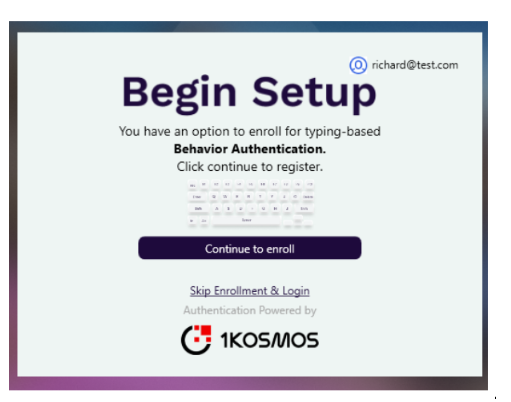
- On the Begin Setup screen, click Continue to start enrollment.
To skip enrollment and proceed directly to the Windows login, click Skip Enrollment & Login.
5.A typing pattern is displayed; Type the phrase exactly as shown.
-
You will need to repeat the phrase based on the number of configured attempts.
-
If you enter an incorrect phrase during any attempt, an error message appears: Typed phrases do not match.
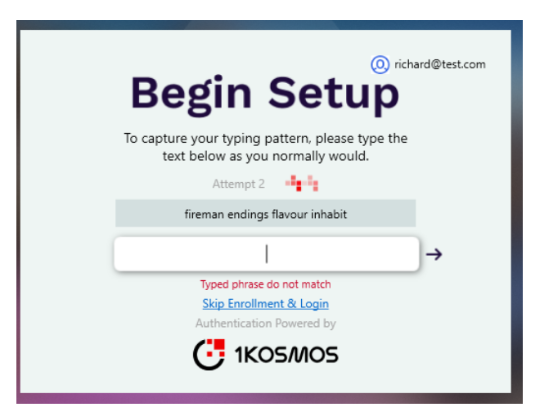
Upon successful completion, a confirmation message is displayed.
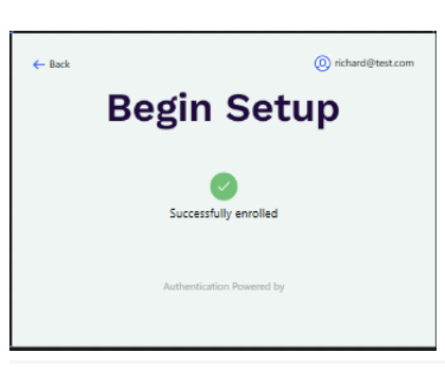
Enrolling PIN
If the authentication journey is configured as Typing Behavior + User PIN, users will be prompted to enroll a PIN after completing their typing pattern enrollment. The PIN length can be configured based on the organization's requirements.
To enroll a PIN, follow these steps:
-
After completing typing pattern enrollment, the UI prompts you to set up a PIN.

-
In the Setup PIN section, enter a PIN that meets the required length, re-enter it to confirm, and click Submit.
noteEnsure that both entries match.
-
Upon successful enrollment, a confirmation message is displayed.

Viewing Enrolled Pattern and PIN
After registering the typing pattern and PIN, end users can view them on the AdminX interface under the Login Options tab of the Dashboard > My Profile menu or under the Users menu.
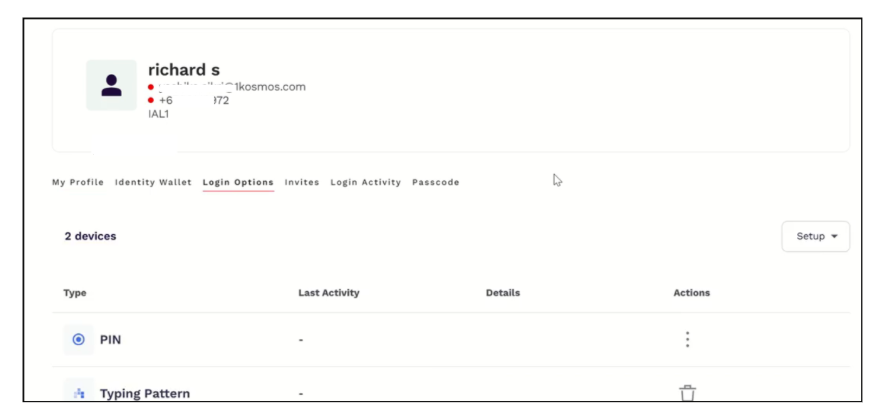
In this tab, end users can perform the following actions:
Deleting PIN
To delete the enrolled pin, follow these steps:
- Log in to your tenant as a community/helpdesk administrator.
- Navigate to My Profile > Login Options.
- In the Actions column, click the three dots against the PIN and click Remove PIN.
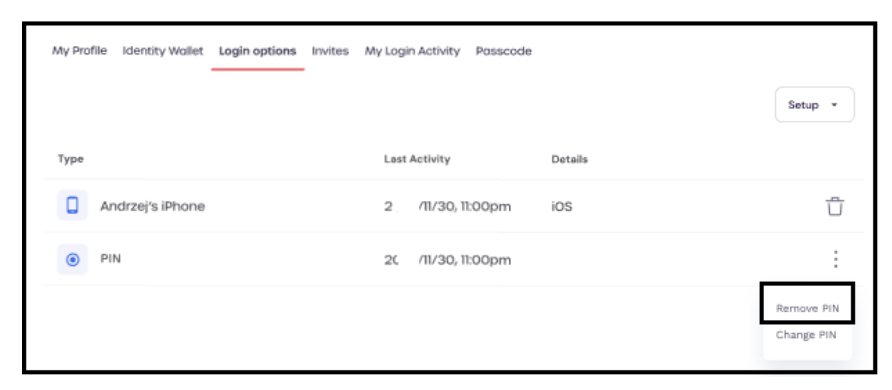
- The Remove PIN window appears asking users for PIN removal confirmation. Click Remove.
Modifying PIN
To modify the enrolled pin, follow these steps:
- Log in to your tenant as an end user.
- Navigate to My Profile > Login Options.
- In the Actions column, click the three dots against the PIN and click Change PIN.
- When the Change PIN window appears, enter a 4-digit PIN and confirm it by re-entering the same PIN.
- Click Continue to reset. A confirmation message is displayed: "PIN successfully changed."
Deleting Typing Pattern
To delete the enrolled pattern, follow these steps:
-
Log in to your tenant as a community/helpdesk administrator.
-
Navigate to My Profile > Login Options.
-
In the Actions column, click the delete icon against the pattern been enrolled.
-
The Remove Typing Pattern window appears asking users for typing pattern removal confirmation. Click Remove.
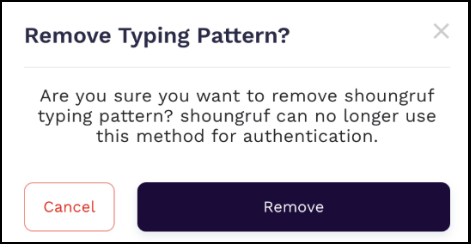
Authenticating Using Behavior Authentication
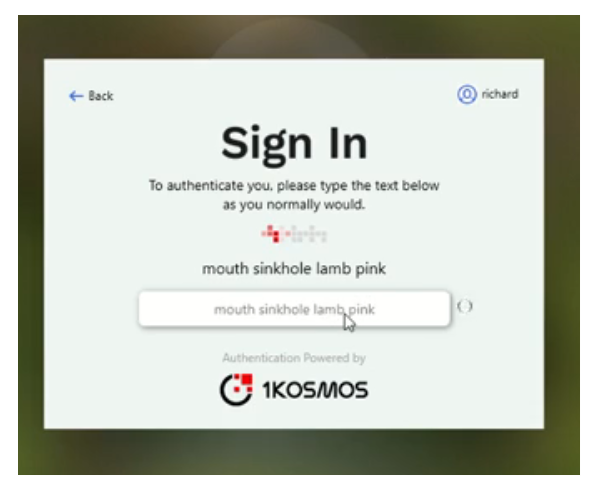
- Log in to your workstation with your username and password.
- In the Sign In – Choose an authentication method screen, click Behavior Auth.

- Enter the phrase displayed on the screen and press Enter.
- In the Sign in – Choose an authentication method screen, click User PIN.
- Enter the PIN and press Enter. Upon successful authentication, the user will be logged into the workstation.

Error Messages
The following table outlines the error messages displayed in the UI for various failure scenarios during typing behavior and PIN authentication.
| Scenario | Error Message |
|---|---|
| When fetching a phrase fails | Unauthorized. Failed to fetch typing phrase. |
| When Registration Typing fails at platform | Unauthorized. Failed to register typing pattern. |
| When Registration PIN fails at platform | Unauthorized. Failed to register user pin. |
| During Validation of Pattern (incorrect pattern) | Incorrect pattern. Please try again. |
| During Validation of PIN (incorrect pattern) | Incorrect PIN. Please try again. |
Event Logs
Following events are recorded on the AdminX interface:
- E_BEHAVIOR_AUTH_ENROLLED
- E_BEHAVIOR_AUTH_UNENROLLED
- E_USER_PIN_ENROLLED
- E_USER_PIN_UNENROLLED
- E_USER_PIN_UPDATED