> For the complete documentation index, see [llms.txt](https://docs.1kosmos.com/llms.txt). Markdown versions of documentation pages are available by appending `.md` to page URLs; this page is available as [Markdown](https://docs.1kosmos.com/integrations/authentication/custom-integrations/oidc-application-integrations.md).
# OIDC Application Integrations
OpenID Connect (OIDC) is an industry-standard authentication layer built on top of the OAuth 2.0 authorization protocol. OAuth 2.0 provides security through scoped access tokens.
***
**OpenID Connect (OIDC)** is an industry-standard authentication layer built on top of the OAuth 2.0 authorization protocol. The OAuth 2.0 protocol provides security through scoped access tokens, and OIDC provides user federation and single sign-on functionality. Within the OIDC workflow, 1Kosmos can act as both the **Identity Provider (IdP)** or as the **Service Provider (SP)**, depending on the use case.
An OpenID Connect (OIDC) app integration provides identity federation after a user has been deemed authorized via one of the various OAuth 2.0 protocol flows supported by 1Kosmos. OIDC is used by a relying (receiving) party to verify end-user identity and obtain specific user information subject to consent granted by that same end-user.
For detailed information about the OpenID Connect Foundation and to review the full protocol specification, see [Welcome to OpenID Connect](http://openid.net/connect/).
#### 1Kosmos as Identity Provider
1Kosmos can integrate with OIDC applications by acting as an IdP that provides single sign-on (SSO) to external applications.
1. The user requests access to a client application.
2. The application delegates the user authentication and redirects the user to 1Kosmos for authentication. The application requests a token from 1Kosmos to establish the user session.
3. Acting as the IdP, 1Kosmos uses Multi-Factor Authentication (MFA) to authenticate the user. 1Kosmos verifies the user and, if successful, prompts the user to grant access to the application.
4. If the user grants access, 1Kosmos generates an ID token containing the user identity information that the application can access.
5. 1Kosmos returns the authenticated user to the application.
#### 1Kosmos as Service Provider
1Kosmos can also serve as the SP, where it consumes single sign-on authentication from other SSO solutions like ForgeRock, Okta, IBM Tivoli Access Manager, Oracle Access Manager, or CA SiteMinder, for example.
In this scenario, if a user tries to sign in to 1Kosmos, they are redirected to an external IdP for authentication. After the user has successfully authenticated, the external IdP returns the OIDC token, which is then passed through the user's browser to access the application.
1. The user opens 1Kosmos in a browser to sign in to their cloud or on-premises app integrations.
2. 1Kosmos acts as the SP and delegates the user authentication to the external IdP.
3. The external IdP acts as an authorization server for 1Kosmos.
4. The IdP authenticates the user and sends an ID token back to 1Kosmos.
5. 1Kosmos validates the OIDC token from the external IdP and, if necessary, enforces MFA for user authentication.
1Kosmos will soon support Just In Time provisioning of users based on the information passed in their identity token *(coming soon)*.
#### Privacy by Design - User Consent
**User Consent for OAuth 2.0 and OpenID Connect Flows**
Users have to give their explicit permission to allow 1Kosmos to share their profile information with relying parties. Consent grants are persisted on the 1Kosmos platform. When an application needs to get a new access token, it doesn't need to prompt the user for consent if they've already consented to the specified scopes. Consent grants remain valid until the user manually revokes them or until the user, integration, authorization server, or scope is deactivated or deleted.
### **OIDC Integration in AdminX**
#### Add a New OIDC Application Client
Adding an OIDC integration in AdminX is simple and straightforward, with a streamlined process for adding all the necessary configuration options.
To get started, navigate to your AdminX control panel and log in as a tenant or community administrator.
1. Navigate to **Applications > Add Application**.
(or)
On the **Manage applications** page, click **Add an application**.

2. From the **Add new applications** page, scroll down to the **OIDC** (located in the **Custom app** section) and click *Add Integration*.

3. Enter an **application name**, and upload a logo file (<2MB in size).
4. For **Grant Type**, select *Authorization Code* from the dropdown menu and select the appropriate **Signing Algorithm**.
5. Provide the sign-in redirect URI for your OIDC provider. You can add additional URIs as needed.
6. Specify the URI to which the provider has to redirect to an application after logout.
7. Select one or more **Scopes**.

8. Turn the **Force Re-authentication** slider ON if you want the user to re-authenticate every time the user visits the application.
9. After reviewing all your information, click **Create**.
AdminX will automatically assign a **Client ID** and **Client Secret** to your new OIDC application client.

#### Configure OAuth2 and OIDC Community settings
**OAuth2 Protocol Settings**
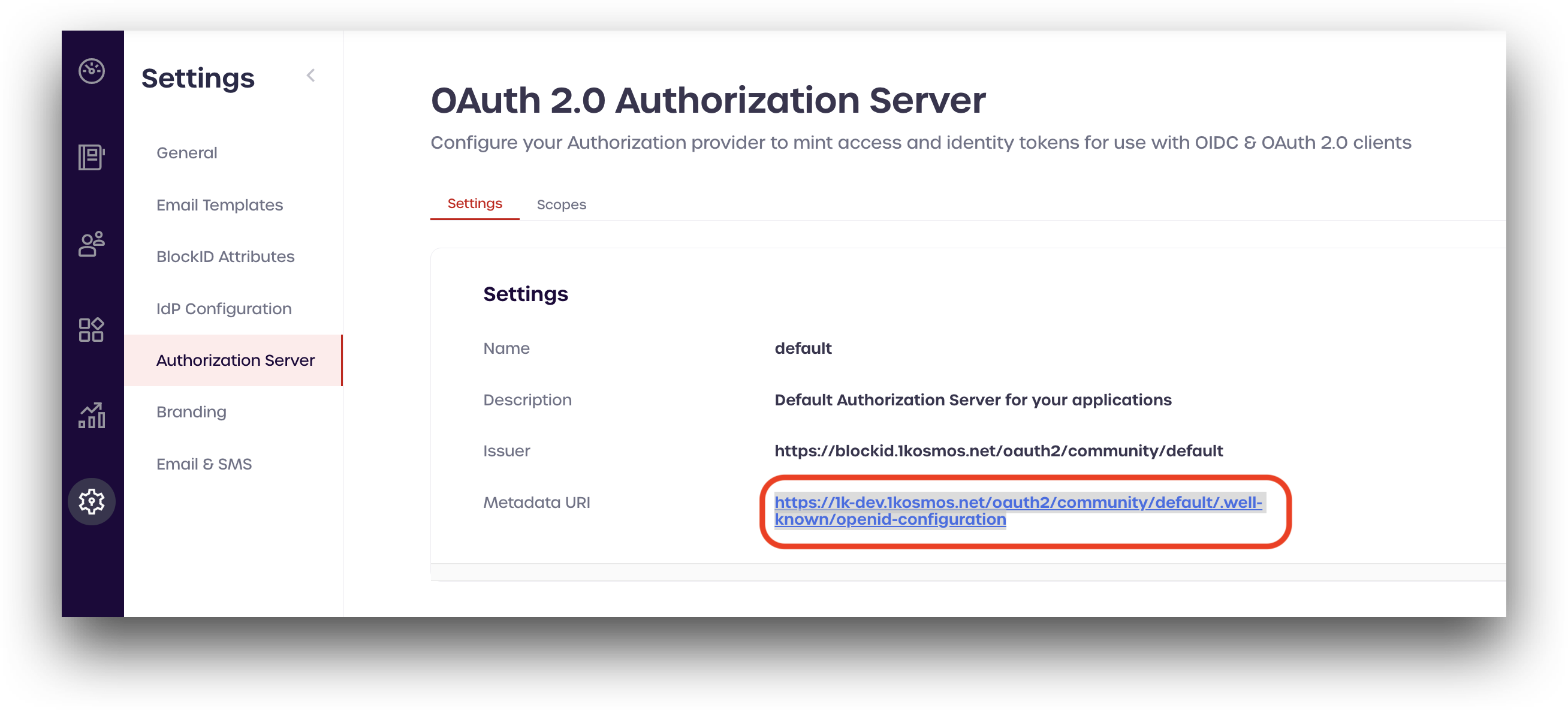
The **OAuth 2.0 Authorization Server** page includes details about your community's authorization server. Clients can use the information on this page to programmatically configure their interactions with 1Kosmos.
To view the settings for your authorization server, navigate to **Settings > Authorization Server**.
**Scope Settings**
For scopes that require user consent, end-users will be prompted to accept or deny sharing of information.

---
# Agent Instructions
This documentation is published with GitBook. GitBook is the documentation platform designed so that both humans and AI agents can read, navigate, and reason over technical content effectively. Learn more at gitbook.com.
## Querying This Documentation
If you need additional information that is not directly available in this page, you can query the documentation by asking a question.
Perform an HTTP GET request on the following URL with the `ask` and `goal` query parameters:
```
GET https://docs.1kosmos.com/integrations/authentication/custom-integrations/oidc-application-integrations.md?ask=&goal=
```
`ask` is the immediate question: it should be specific, self-contained, and written in natural language.
`goal` is what the user is ultimately trying to achieve, the reason they need the answer. Sharing it helps GitBook give you a better, more relevant answer. A goal is most helpful when it describes the outcome the user wants rather than restating the question. For example, with `ask=how do I create an API token`, a goal like `automate deployments from our CI pipeline` lets GitBook tailor the answer to that use case.
The response will contain a direct answer to the question and relevant excerpts and sources from the documentation.
Use this mechanism when the answer is not explicitly present in the current page, you need clarification or additional context, or you want to retrieve related documentation sections.