> For the complete documentation index, see [llms.txt](https://docs.1kosmos.com/llms.txt). Markdown versions of documentation pages are available by appending `.md` to page URLs; this page is available as [Markdown](https://docs.1kosmos.com/identity-verification/capture-and-tips.md).

# Capture & Tips

***

### Overview

The resolution of the image should be at least **1080p** (1920×1080 px). Smaller resolutions are accepted, but won't provide optimal results. Larger resolutions are also accepted, but won't improve the scanning process significantly. We **don't recommend going above 4k in&#x20;*****any*****&#x20;case**, but even 4k is not necessary for most use cases.

### Prepare Your Document

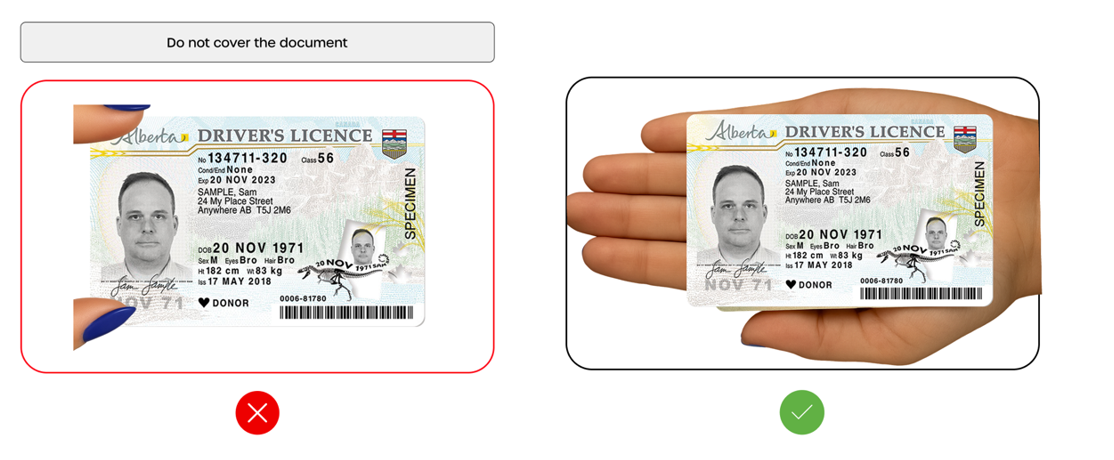
<table data-view="cards"><thead><tr><th></th><th></th></tr></thead><tbody><tr><td><h4>Tips</h4></td><td>Capture clear, well-lit images of both the front and back of the ID document, ensuring all details are legible. Orient the document properly during scanning to avoid distortion or misinterpretation of data.</td></tr><tr><td><h4>Positioning the document</h4></td><td>Position the ID document so it fills 60–70% of the frame, avoiding extreme angles. Lay the document flat on a dark surface, or hold it in your hand. Do not block any data on the document.</td></tr><tr><td><h4>Using lighting</h4></td><td>Use natural lighting or a soft, even artificial light source. Avoid harsh overhead lights or direct bright lights that can cause glare or shadows. Find a location with ambient lighting.</td></tr><tr><td><h4>Focusing the camera</h4></td><td>Ensure the camera focuses on the document, avoiding blurriness. Adjust your distance from the document if necessary.</td></tr><tr><td><h4>Ensuring image clarity</h4></td><td>Ensure all four edges of the document are visible and all details, including the face (if applicable) and security features, are clear and legible. Avoid obstructions such as fingers or shadows.</td></tr><tr><td><h4>Preparing the background</h4></td><td>Keep the background clean and uncluttered to avoid distractions.</td></tr><tr><td><h4>Avoiding obstructions</h4></td><td>Ensure nothing blocks any part of the document, including the edges.</td></tr><tr><td><h4>Checking document quality</h4></td><td>In some cases, documents in poor condition (for example, peeling laminate, crumpled pages, or moisture damage) may cause the verification process to fail. Ask the customer for an additional ID or substitute document.</td></tr><tr><td><h3>Visual Guidelines</h3></td><td>The following examples illustrate the correct and incorrect application of the visual best practices outlined above.</td></tr></tbody></table>

### How to capture a Driver's License

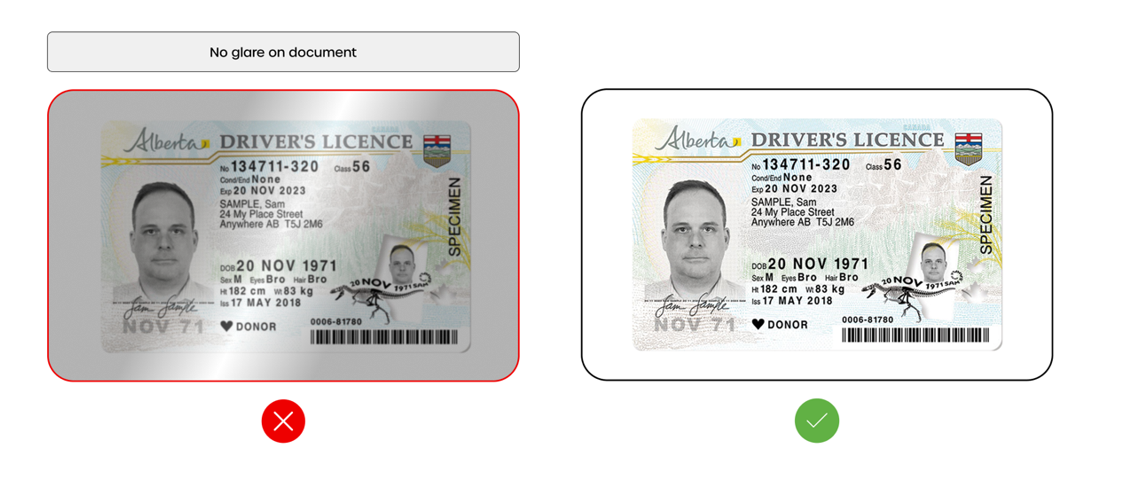
1. Avoid glare on the document. Glare is typically from overhead lights or exterior lighting.

<figure><img src="/files/e3fbcf271d1a119795ce164b872f866206aa2c62" alt="No Glare Document Capture"><figcaption></figcaption></figure>

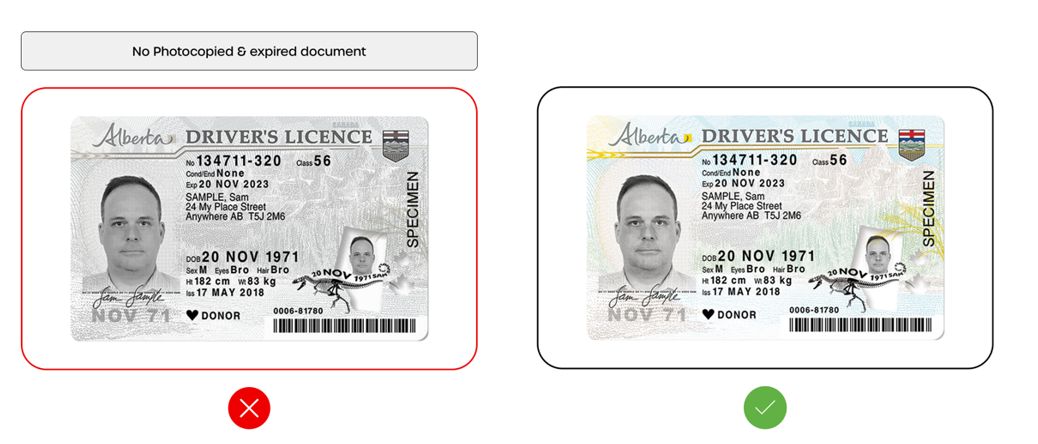
2. Do not use or accept photocopied, expired documents, or screen captures of a document.

<figure><img src="/files/84b20382db1124a2e8a7f67981c797fb3257c994" alt="No Photocopied &#x26; Expired Document"><figcaption></figcaption></figure>

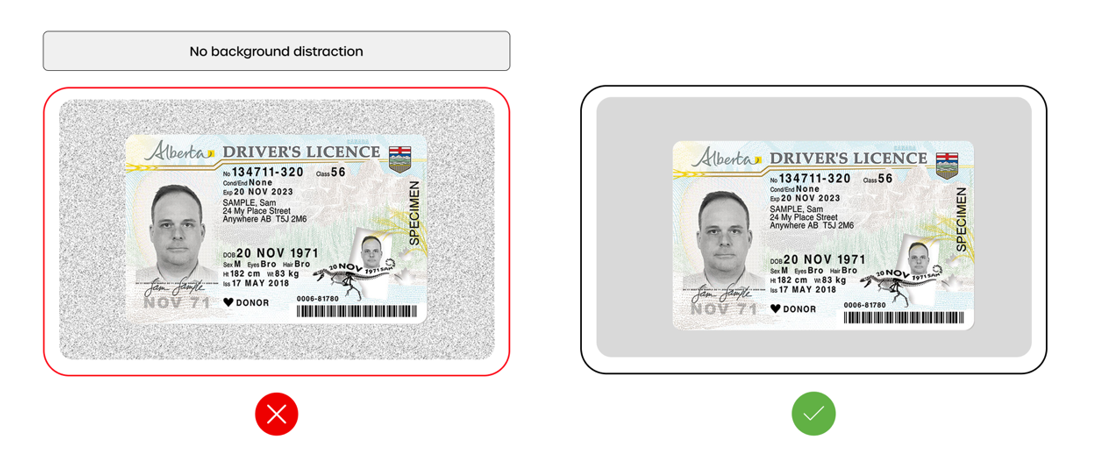
3. Remove all background distractions. This can be defined as objects within the camera screen for document capture, objects on the table or base where the document is positioned etc.

<figure><img src="/files/2e7023fd142571015f7b1ce0f4fb439f6ed50a39" alt="No Background Distraction"><figcaption></figcaption></figure>

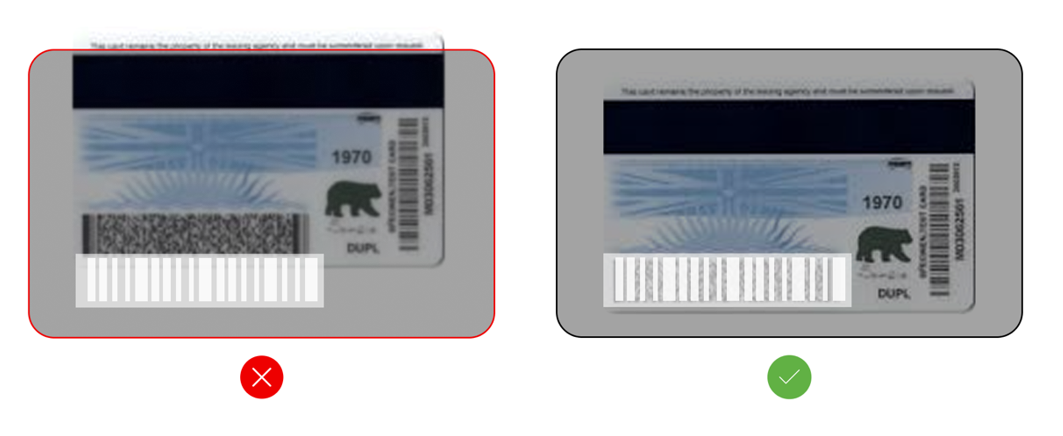
4. Ensure entire reverse of document is viewable and no barcodes are blocked by fingerprints or objects.

<figure><img src="/files/9ddc8b7ed09d1ad8df36fec27d399e134547f8b6" alt="Align document within the frame"><figcaption></figcaption></figure>

5. Do not cover the document with your fingers on or around the edges.

<figure><img src="/files/c854348ce1c6bfb490d2bc5bd2063706bb3880d1" alt="Do not cover the document"><figcaption></figcaption></figure>

### How to capture Passports

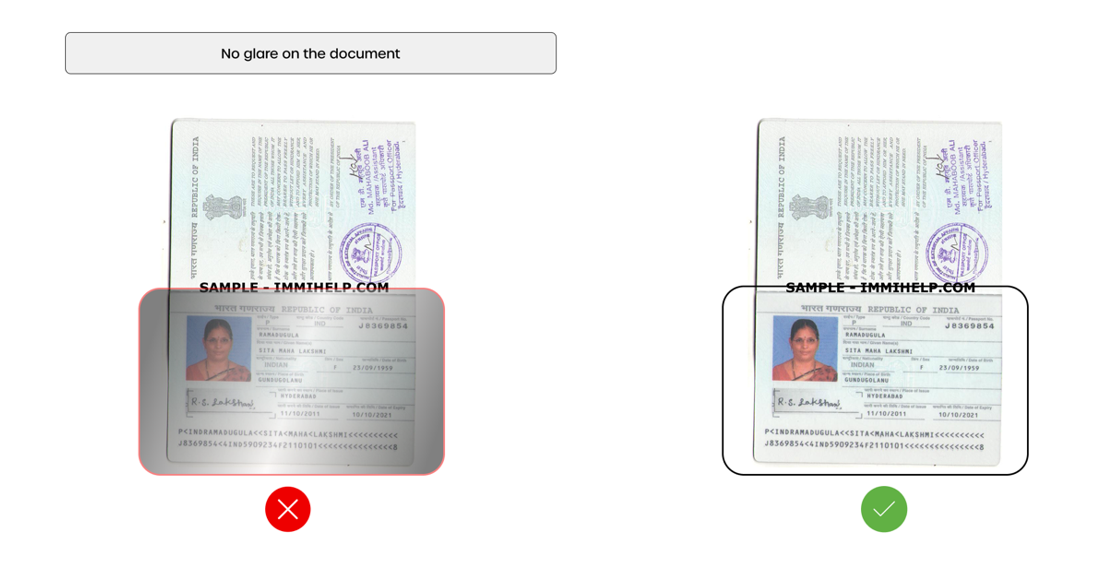
1. Avoid glare on the document. Glare is typically from overhead lights or exterior lighting.

<figure><img src="/files/4e99b3ae77bcbcc4adfcd1a666d3d91ccb81b02e" alt="No Glare on the document"><figcaption></figcaption></figure>

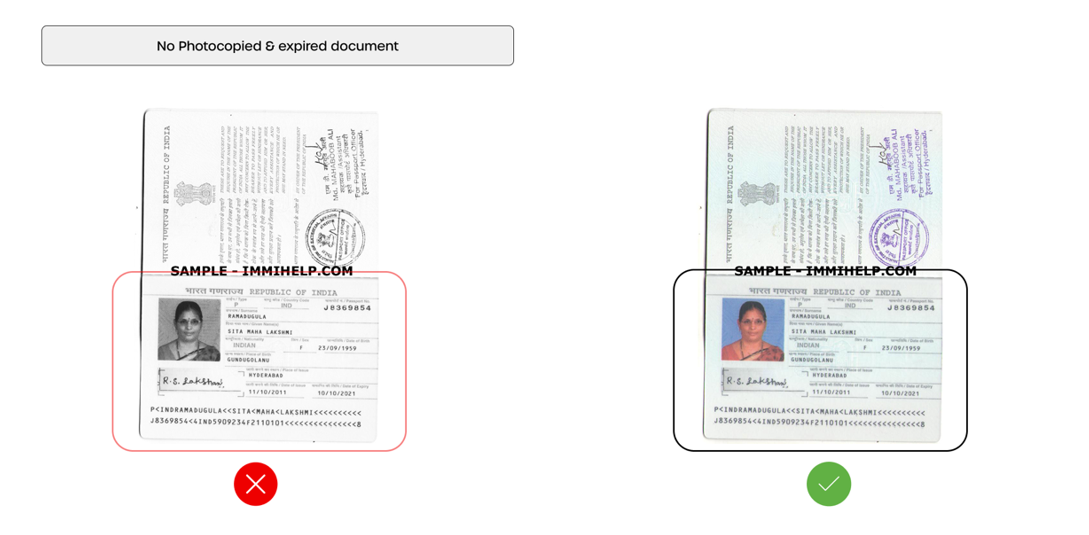
2. Do not use or accept photocopied, expired documents, or screen captures of a document.

<figure><img src="/files/452bef448d71be2f608fdc285d08d6ca6a9abce0" alt="No photocopy or expired document"><figcaption></figcaption></figure>

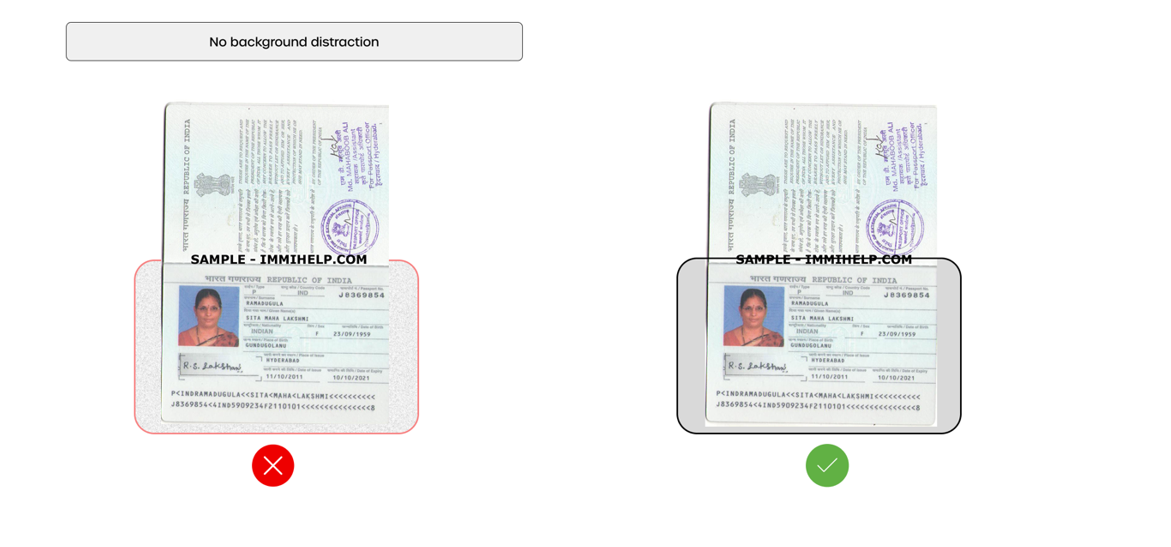
3. Remove all background distractions. This can be defined as objects within the camera screen for document capture, objects on the table or base where the document is positioned, etc.

<figure><img src="/files/803b073bbd69aecdcd850249458e0a12291b1860" alt="No Background distractions"><figcaption></figcaption></figure>

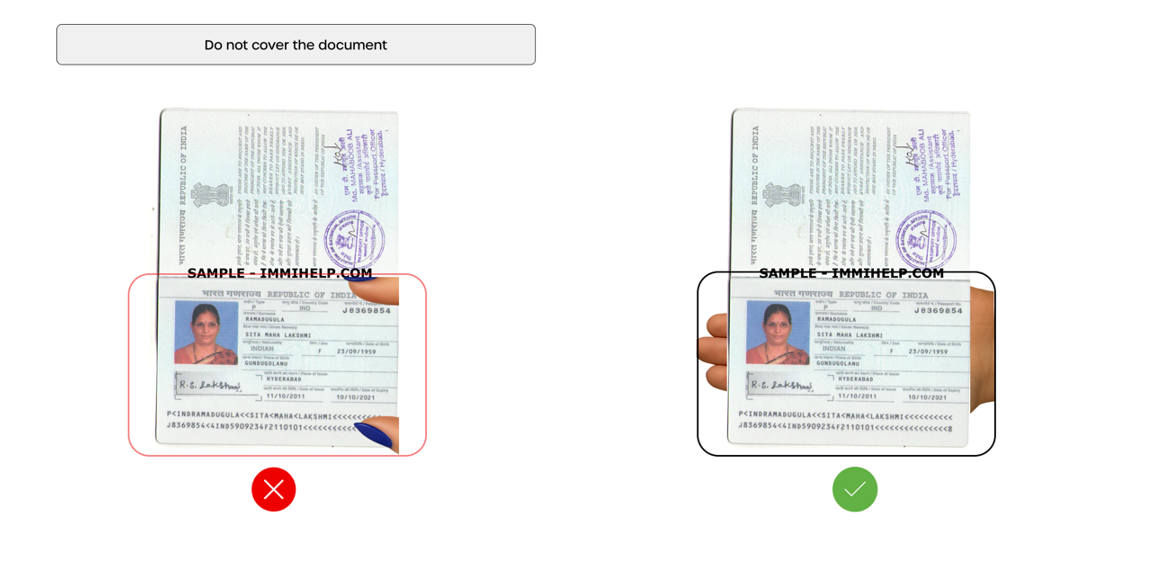
4. Do not cover the document with your fingers on or around the edges.

<figure><img src="/files/37cc907c5c059e4e48b33377215080d45c777a90" alt="Do not cover document"><figcaption></figcaption></figure>

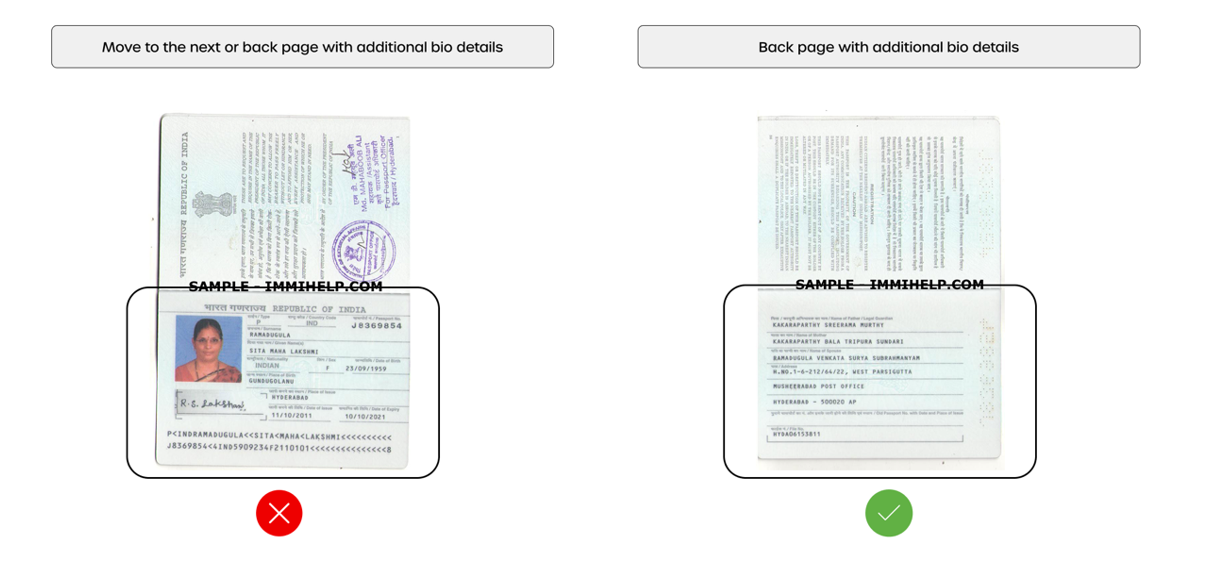
5. Move to the next or back page in the passport with additional biographical details.

<figure><img src="/files/aa7ae0b20f96522efd81e21c2c4c7e220eb79e8f" alt="Align document within the frame"><figcaption></figcaption></figure>


---

# Agent Instructions
This documentation is published with GitBook. GitBook is the documentation platform designed so that both humans and AI agents can read, navigate, and reason over technical content effectively. Learn more at gitbook.com.

## Querying This Documentation
If you need additional information that is not directly available in this page, you can query the documentation dynamically by asking a question.

Perform an HTTP GET request on the current page URL with the `ask` query parameter, and the optional `goal` query parameter:

```
GET https://docs.1kosmos.com/identity-verification/capture-and-tips.md?ask=<question>&goal=<endgoal>
```

`ask` is the immediate question: it should be specific, self-contained, and written in natural language.
`goal` is optional and describes the broader end goal you are ultimately trying to accomplish on behalf of the user. GitBook uses it to tailor the answer towards what is most useful for that goal.

The response will contain a direct answer to the question and relevant excerpts and sources from the documentation.

Use this mechanism when the answer is not explicitly present in the current page, you need clarification or additional context, or you want to retrieve related documentation sections.